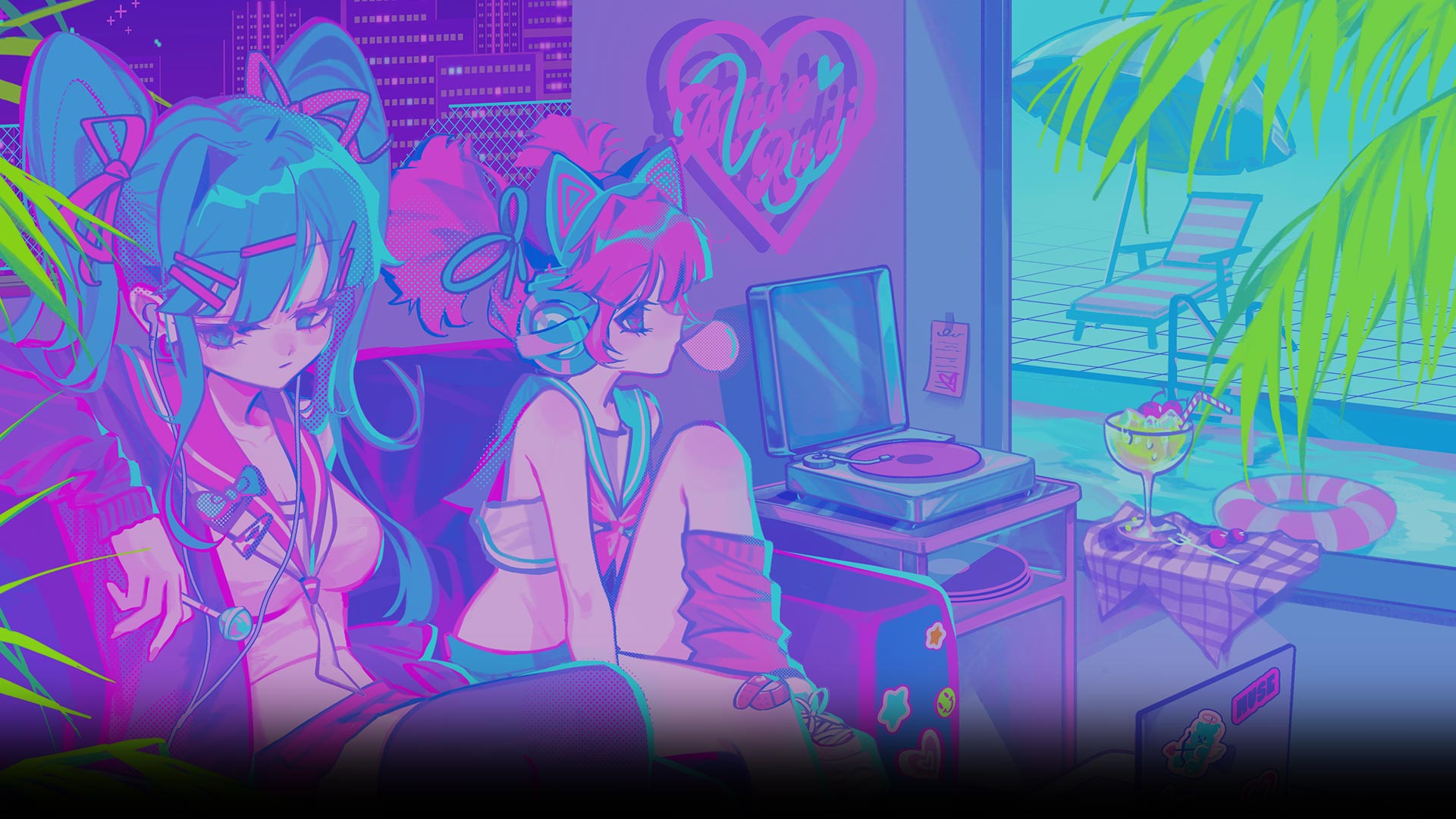
Paste the direct Steam background URL used by your profile, or upload the local background file. If Steam uses a different background than this preview, the exported slices will not line up.
Pick the showcase shape first
Use the three preset buttons above the input before exporting:
Featured Artwork exports one wide slice.
Artwork exports a main slice and a narrow side slice.
Workshop exports 5 slice groups.
Match the Steam display mode
Choose Full Screen when the profile background covers the browser width. Choose Original Size when the profile keeps the background at its original Steam size. Changing this after export changes the crop.
Export from one finished preview
For animated backgrounds, keep all slices from the same preview and timeline. Steam’s artwork form accepts JPG, PNG, and GIF up to 5 MB. MP4 and WebM exports are source clips for further conversion, not direct artwork uploads. Verify APNG animation on Steam before relying on it.
Check the real profile after upload
Upload each slice to the Steam surface that matches the showcase. Community long-image and screenshot upload methods can change, so always apply the showcase and check the live profile before editing the files by hand.
Custom Steam Profile Background Workflow
Profile setup order
Pick the custom Steam profile background.
Set the Steam display mode.
Choose Featured Artwork, Artwork, Screenshot, or Workshop.
Adjust the crop after the showcase type is fixed.
Export the slices for that showcase only.
Before uploading
Confirm the account has the showcase slot.
Upload each slice to the matching Steam surface.
Check the live Steam profile after upload.
Steam Profile Showcase Crop Sizes
Choose the showcase before export
Each Steam profile showcase uses a different crop shape. Choose the final showcase first, then export the matching slice set.
Common showcase targets
Featured Artwork uses one wide Steam profile art crop.
Artwork Showcase uses a main artwork slice and a narrow side artwork slice.
Screenshot Showcase uses a main screenshot area and a right column.
Workshop Showcase can use several vertical Steam background slices.
Useful size checks
Artwork main slice is commonly 506px wide.
Artwork side slice is commonly 100px wide.
Featured Artwork is about 630px wide.
Steam Profile GIF and Animated Backgrounds
Pick the animation type
Steam profile GIF can mean animated artwork in a showcase. Steam animated backgrounds are profile background items with MP4 or WebM media.
Check motion before upload
Let the animated background load before judging alignment.
Watch the edge where the showcase meets the profile background.
Export video slices for animated backgrounds, not still poster frames.
Re-export from the same preview if a slice starts late or drifts.
A Steam profile GIF usually belongs in artwork, screenshot, or another showcase upload flow. Steam animated backgrounds are profile items and use MP4 or WebM background media.
Common problem
If the GIF or video slice starts at a different time than the page background, the design can look out of sync.
That can happen with community long-image workarounds
Some Steam artwork profile guides use upload-code workarounds for tall images. When the workaround works, the selector can show a thin line because the image is much taller than a normal thumbnail.
What to do
Select it and check the final profile.
If the showcase is not aligned, export again from the cropper.
Steam profile showcases depend on account level and Points Shop upgrades. A Steam profile creator can prepare artwork, but the account still needs the right showcase slot or upgrade to display it.
Check before designing
Confirm that your account can use the target showcase type before exporting the slices.
Steam custom URL, upload-code, and long-image instructions are community workarounds, not stable Steamworks rules. Steam can change upload pages, field names, accepted file types, or selector behavior.
A good background is not always a good crop background
Some of the best Steam backgrounds put the main character or logo in the center, where profile content covers it. For Steam profile themes and custom profile background design, side detail and dark lower fades often work better.
Choose for layout, not only for the image
Pick a background that still works after the header, showcase, right rail, and lower content cover part of the image.

FAQ
Full Screen or Original Size: which one should I crop?
Match the mode used on Steam
Fix it
Why does my Steam profile background not line up?
Check the source and mode first
Fix it
Why does my Steam profile art fit one showcase but not another?
Each showcase has its own shape
Fix it
How to put a GIF on Steam profile without breaking the background?
Use the right Steam surface
Common problem
Why does my uploaded long artwork show as a thin line?
That can happen with community long-image workarounds
What to do
Why can I not add the showcase after making the crop?
The crop files do not unlock Steam showcase slots
Check before designing
Why do Steam upload codes or custom URL tricks stop working?
Community upload methods can change
Safer workflow
Why do the best Steam backgrounds still look bad behind a showcase?
A good background is not always a good crop background
Choose for layout, not only for the image